


-

Blob Opera
-
The Choicest Voice
-

SpongeBob Is This How You Get Your Sick Kicks
-

Hiding from Randall Monsters Inc
-

Dance Moms – GET YOUR FINGER OUT OF MY FACE
-

Doppio switch into Diavolo
-
SpongeBob SquarePants – Insultin a mans ship
-
Ichigo vs Grimmjow
-

Family Guy Peter Does Crack
-

TAWOG Have You Noticed That Your Voice Has Changed – The Castle
-

Kung Fu Panda o sigma da Bahia
-
Peter Griffin Plays Call of Duty Dub
-
Stutter incident – Joe Bart
-

No This Is My Lolly
Mic Fixes
The microphone in The Choicer Voicer isn’t just one of your control options — it’s the only way you interact with a round. Your mouse handles everything outside of actual performing: picking a content pack, choosing a judge panel, host, and studio. Once a round starts, there’s no controller layout and no keyboard shortcuts for the actual performance — it’s all voice. That’s exactly why audio recording issues hit harder here than in most other games: if your mic isn’t working, there’s nothing left to play.
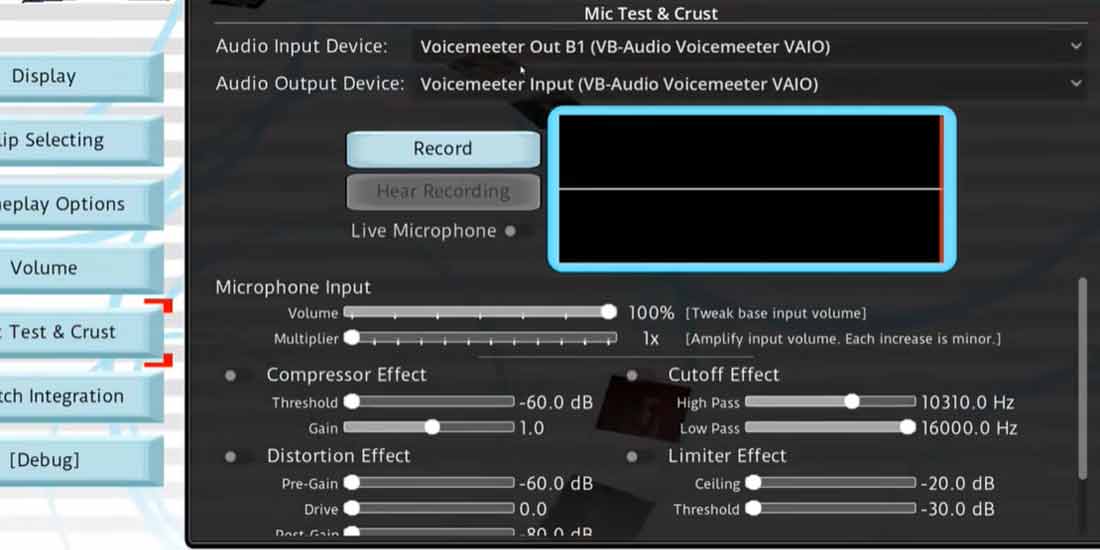
This guide breaks down the game’s most commonly reported technical issue, walks through setup before your first session, and gives you a checklist worth running through every time you play with new people.
The Main Problem: Recording Dropouts on Surround-Sound Setups
The most consistently reported technical issue in The Choicer Voicer’s community is a recording dropout mid-round. The game starts recording, and a few seconds in, the recording simply stops or never registers at all.
The issue is tied specifically to surround-sound audio configurations — situations where the underlying input handling doesn’t line up cleanly with certain output setups. On a plain stereo setup, this bug is rarely an issue at all: players on standard stereo output essentially never run into it, while players on surround configurations can hit a wall that stops a session cold.
This is worth knowing before you invite friends over for a first session — discovering it mid-way through a group hangout is a lot more frustrating than catching it ahead of time.
The Fix That Actually Works
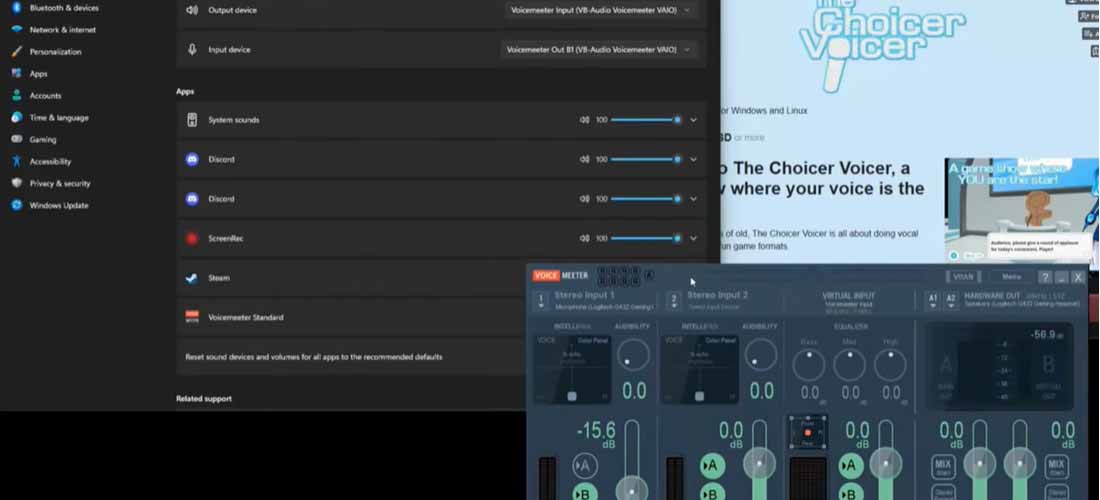
The workaround that consistently comes up in community discussion, and that reliably resolves the issue, is to route the game’s audio output through a spare device and monitor that output externally so the recording still registers correctly. This isn’t built into the game, and it’s an annoying extra step for something that should ideally take a couple of minutes to set up — but it’s the fix that actually works for most people hitting this bug.
Here’s the practical breakdown by setup type:
| Audio Setup Type | Dropout Risk | What It Means for You |
|---|---|---|
| Standard stereo | Minimal | Nothing special to do — this is the setup the game handles best by default |
| Surround / multi-channel | High | Expect intermittent dropouts unless you route output through a spare device |
| Virtual audio devices | Elevated | Behavior varies by driver — treat any dropout here as a setup issue, not a bug |
Diagnosing a Dropout Before You Blame the Game
Not every failed recording is the surround-sound bug. Before assuming your setup is the culprit, it helps to narrow things down:
- Reproduce it on a short clip first. If a five-second test round drops out too, the issue is almost certainly upstream in your audio routing, not something specific to longer rounds or Dub Mode.
- Switch outputs temporarily. If you have any way to fall back to a basic stereo output — even briefly — and the dropout disappears, that confirms it’s the surround configuration causing it rather than a driver or hardware fault.
- Watch for a pattern, not a one-off. A single failed round can be a fluke. A dropout that repeats across multiple sessions on the same setup is the signal that it’s worth setting up the external routing workaround described above.
- Note when in the round it fails. Dropouts right at the start of a recording usually point to the input device itself; dropouts partway through are more consistent with the surround-routing issue this guide focuses on.
Mic Assignment for Local Multiplayer
If you’re playing with up to four people in the same room, there’s a setup step that’s easy to miss on a first session. On the multiplayer setup screen, each of the up to four players needs to be assigned a separate microphone.
Skip this step, and one player’s voice can bleed into someone else’s turn — the game ends up scoring a blend of voices rather than the person who’s actually performing. It’s an easy thing to miss the first time around, since the problem usually isn’t obvious until the round results look off.
Tip: confirm mic assignments on the multiplayer setup screen before every session with a new group — even if the same hardware worked fine last time.
Recording Reliability in Dub Mode
In Dub Mode, you’re not recording a short line for a few seconds — you’re recording a full voiceover pass over a longer scene, which means the session runs significantly longer than a standard scored round. That makes mic reliability even more important here: a dropout mid-recording costs you the entire take, not just one line.
Audio-video sync in this mode isn’t always perfectly consistent either: some attempts sync cleanly, while longer scenes occasionally end up with the audio landing fine but the video failing to keep pace. This doesn’t affect every setup — some configurations sail through Dub Mode without issue, while others run into sync problems more regularly.
- Run a short 10-15 second clip through Dub Mode before committing to anything longer — this quickly surfaces sync issues on your specific setup.
- Don’t start a long dubbing session until a short test has come through clean.
Pre-Session Checklist
| Step | Why It Matters |
|---|---|
| Check your selected input device | The most common reason audio isn’t picked up at all |
| Run a test recording | Catches problems before a scored round, not during one |
| Confirm mic assignments (multiplayer) | Prevents one player’s voice bleeding into another’s turn |
| Make sure surround output is routed properly | The leading cause of recording dropouts in the game |
| Run a short test before Dub Mode | A dropout on a long scene costs far more than one on a short round |
Frequently Asked Questions
The game isn’t detecting my microphone at all — is that the surround-sound bug too?
Not necessarily. A mic that’s silent from the very first second is usually a device-selection issue rather than the surround-sound dropout, which tends to show up mid-recording instead. Rule out the input device first before assuming it’s the same bug covered in this guide.
I have a surround-sound setup — do I definitely need to change anything?
Not necessarily, but the risk of recording dropouts is noticeably higher on these configurations. If your sessions keep dropping mid-round, routing audio output through a spare device is the most reliable known workaround.
Why do player voices sometimes get mixed up in local multiplayer?
This almost always means individual mics weren’t assigned to each player on the multiplayer setup screen. Double-check this before every new session.
Can I trust Dub Mode recordings on longer scenes?
Most of the time, yes — but not always: longer scenes can occasionally run into audio-video sync issues. Running a short test clip before a long recording is the best way to catch this ahead of time.
Microphone issues are arguably the one genuinely rough edge in The Choicer Voicer, but they’re manageable. Get your input set up correctly once, confirm mic assignments in multiplayer, and route around the surround-sound bug — and from there, the game works exactly as intended: hit record and start performing.