


-

Blob Opera
-

The Choicest Voice
-

SpongeBob Is This How You Get Your Sick Kicks
-

Hiding from Randall Monsters Inc
-

Dance Moms – GET YOUR FINGER OUT OF MY FACE
-

Doppio switch into Diavolo
-

SpongeBob SquarePants – Insultin a mans ship
-

Ichigo vs Grimmjow
-

Family Guy Peter Does Crack
-

TAWOG Have You Noticed That Your Voice Has Changed – The Castle
-

Kung Fu Panda o sigma da Bahia
-

Peter Griffin Plays Call of Duty Dub
-
Stutter incident – Joe Bart
-

No This Is My Lolly
Chat Mode
Running The Choicer Voicer on Stream
Chat Mode swaps out the game’s computer-controlled judge panel for your own Twitch chat. Instead of an algorithm scoring your performance, viewers vote through commands in real time — which changes the entire feel of a round. You’re no longer performing for a scoring engine, you’re performing for people who might heckle you about it live. This guide walks through what actually changes in this mode, how to set a segment up so it runs smoothly, and how to avoid the handful of mistakes that trip up most streamers on their first attempt.
What Chat Mode Actually Changes
The core loop stays the same — a clip plays, you perform it, someone scores it. What’s different is who’s doing the scoring and how that scoring gets delivered. Viewers submit their judgment through chat commands instead of the game’s built-in panel reacting automatically. That has a few knock-on effects worth planning around before you go live:
- Scoring speed depends on chat activity. A slow chat means a slow round; a packed chat means votes can come in faster than you can read them.
- Judgment becomes public and visible. Chat isn’t a hidden panel — viewers see what everyone else voted, which changes group dynamics compared to a private computer score.
- There’s a dedicated pack type for this mode. Some voice packs are built specifically as chat packs, giving viewers their own clips to vocalize themselves as part of the show rather than only voting on yours.
Setting Up a Chat Mode Segment
One of the more underrated things about this mode is how little extra setup it needs once you already have a pack loaded — it slots into an existing stream segment far more easily than you’d expect from something built around live audio judging. Still, a few things are worth locking down before you go live rather than mid-stream:
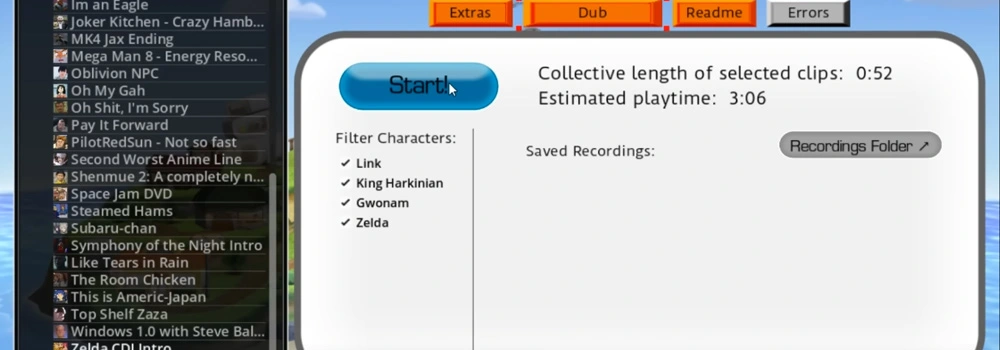
- Pick your pack in advance. Decide whether you’re running a standard performance pack (chat only judges you) or a chat pack (viewers get their own clips too) — these create very different segment paces, and it’s worth knowing which one you’re running before you start talking to chat about it.
- Test the vote commands yourself before going live. Run a private or low-traffic session first so you know exactly what a vote looks like from chat’s side, not just from the streamer dashboard.
- Decide how many rounds fit your segment length. Because voting speed depends on how active chat is, a segment can run faster or slower than expected — loosely plan a round count rather than a fixed time slot.
- Have a fallback clip ready. If a specific pack category is landing flat with your particular audience, having a second option queued up saves you from an awkward stretch of silence between rounds.
Picking Content Chat Will Actually Respond To
Not every clip that works well against the computer judge panel lands the same way with a live audience. Chat is reading fast and reacting in the moment, which means legible, obvious choices tend to outperform subtle ones:
- Clips with a strong, recognizable emotional tone tend to generate faster, more confident votes than clips with a flat or ambiguous delivery.
- Pay attention to which clip categories your specific chat responds well to over a few sessions — this varies audience to audience, and there’s no universal “best” category.
- If you’re running a chat pack, be ready for the session’s energy to shift once viewers start contributing their own audio — the dynamic becomes as much about chat’s clips as your performance.
Keeping the Segment Moving
The biggest practical risk in Chat Mode isn’t a bad performance — it’s dead air while you wait on votes that never fully come in. A few habits keep things moving:
| Problem | What Helps |
|---|---|
| Chat is slow to vote | Call out the vote window verbally rather than assuming chat is watching the screen |
| Votes trickle in after the round’s already moved on | Set a consistent, predictable vote window every round so regular viewers learn the rhythm |
| New viewers don’t know how voting works | Pin the commands in chat and repeat them briefly at the start of each new segment, not just once at the start of the stream |
| Chat votes but the round already timed out | Extend the window slightly for larger or newer audiences rather than keeping a fixed short timer |
Chat Packs: When Viewers Perform Too
Chat packs are a different animal from a standard performance pack — instead of only voting on your delivery, viewers get clips of their own to vocalize as part of the show. This turns a Chat Mode segment into something closer to a shared bit than a one-person performance being judged.
A few things worth knowing if you’re running one for the first time:
- Expect the segment to run longer per round than a standard pack, since you’re now waiting on submissions as well as votes.
- Chat’s reaction to their own submitted clips is often the real entertainment value here — don’t try to compete with it, lean into it.
- Not every chat pack is built the same way — check what a specific pack expects from viewers before going live with it, since submission formats can differ between creators.
Common First-Stream Mistakes
- Assuming chat already knows the commands. Even a chat that’s watched other games with voting systems won’t automatically know yours — explain it plainly the first time you run the segment.
- Running a pack you haven’t previewed. Test a few clips privately first so you’re not discovering a bad or missing slot live in front of an audience.
- Treating it like the computer-judged mode. Pacing that works for a solo or local session can feel slow or repetitive with a live chat waiting on you — keep the energy up between rounds.
- Ignoring which clips are landing. If a category is consistently getting a lukewarm reaction, swap it out rather than pushing through the rest of the pack out of order.
Chat Mode is one of the lighter-weight ways to bring The Choicer Voicer to an audience — the setup overhead is small once a pack is loaded, and most of what makes a segment work comes down to pacing and picking the right content for your specific viewers, not any deep technical configuration. Test it privately once, explain the commands clearly, and it slots into a stream about as easily as any other segment you’re already running.