


-

Blob Opera
-
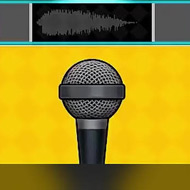
The Choicest Voice
-

SpongeBob Is This How You Get Your Sick Kicks
-

Hiding from Randall Monsters Inc
-

Dance Moms – GET YOUR FINGER OUT OF MY FACE
-

Doppio switch into Diavolo
-
SpongeBob SquarePants – Insultin a mans ship
-

Ichigo vs Grimmjow
-

Family Guy Peter Does Crack
-

TAWOG Have You Noticed That Your Voice Has Changed – The Castle
-
Kung Fu Panda o sigma da Bahia
-
Peter Griffin Plays Call of Duty Dub
-
Stutter incident – Joe Bart
-
No This Is My Lolly
How To Play
The Choicer Voicer is a party game built around vocal impressions rather than trivia or reflexes. A clip plays, you try to recreate it out loud into a microphone, and a panel of in-game judges scores how close you got. The game ships with almost no built-in content — instead, it hands you a studio, a judge panel, a host, and an empty content library that you’re expected to fill yourself, usually with voice packs made by the community or by you. This page covers the core loop, the different ways to play a session, how scoring works, and what to do before you even hit record for the first time.
The Core Loop
Every round follows the same basic pattern: the game pulls a prompt from whatever content is currently loaded, plays the reference clip (or shows the reference character/line, depending on the pack), and you have a short window to perform it into your mic. The judge panel then scores the attempt and moves to the next round. Rounds are intentionally short, which keeps a full studio moving instead of stalling on one player.
- A round starts and a prompt is drawn from the loaded content pack.
- You listen to or read the prompt, then perform it live.
- The judge panel scores based on delivery — pitch, timing, and clarity all factor in, even though the exact judging logic isn’t spelled out anywhere in the game.
- The next player or round begins immediately after.
Because the judging comes from the game’s own panel rather than other players voting, a solo session plays out functionally the same as a group one — you’re always being scored by the same system.

Starting a Session and Picking Content
Before you can play a round, you need something loaded into the studio. The Customize menu is where you set this up: it controls the studio’s look, which judge panel is active, which host is running the show, and which voice pack supplies the actual prompts. None of this is populated by default — the base game is closer to a blank scoring engine than a game with pre-made characters to unlock.
- Open the Customize menu before starting a session, not after.
- Select or install a voice pack — this is what supplies the actual prompts/clips for the round.
- Pick a studio look, judge panel, and host if the pack or your setup offers alternatives.
- Confirm your microphone is working before locking in the session settings — audio input problems are the most common reason a first session goes badly.
If you’re starting from nothing, grab a simple starter voice pack first rather than trying to build one from scratch on your first run. It’s easier to learn the round structure with existing content before worrying about file naming and slot assignment.
Single-Player, Local Multiplayer, and Twitch Chat Mode
The Choicer Voicer supports a few different ways to actually fill the studio seats, and each changes how a session feels.
Single-Player
Most of the game’s modes work solo by default. You’re judged by the panel, not by other players, so a single-player run isn’t a stripped-down version of the “real” game — it uses the same scoring system as a full group session.
Local Multiplayer
Up to four players can share a single studio session, taking turns performing prompts and getting scored individually. This is the closest the game gets to a traditional party-game setup, and it’s the format most people mean when they picture “playing” The Choicer Voicer with friends in the same room.
Twitch Chat Mode
This mode is built for streamers. It reads commands typed by chat members, letting viewers trigger prompts or influence the round from outside the studio. Some voice packs are built specifically as “chat packs,” giving viewers their own clips to vocalize as part of the show rather than just spectating.
Game Show Studio Formats
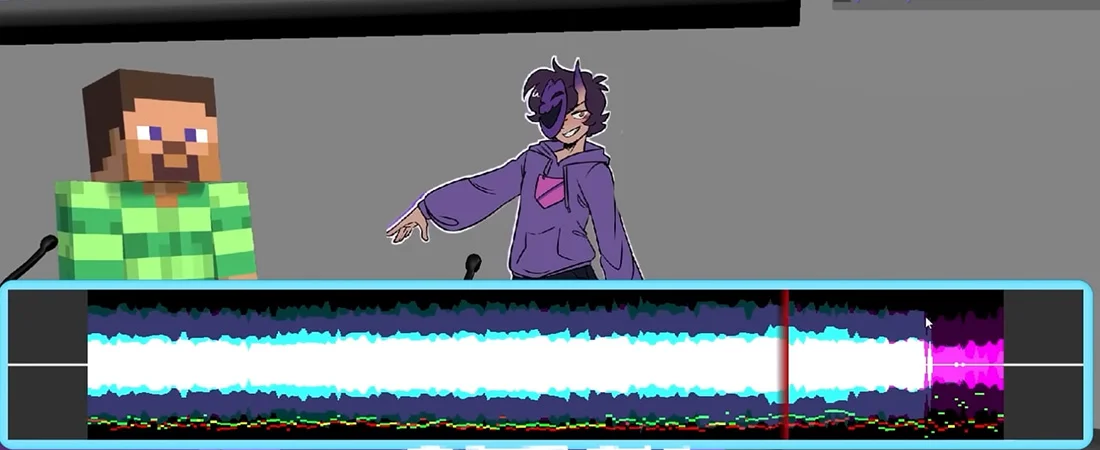
The “studio” is the visual and structural shell a session runs inside — it’s one of the pieces controlled by the Customize menu, alongside the judge panel and host. Different studio formats change the framing of a session (for example, a stricter game-show structure versus a looser hangout format) without changing the underlying scoring loop. Because studio, judge panel, and host are all swappable independently, the same voice pack can be run through very different presentations depending on what you load.
How Scoring and Judging Works
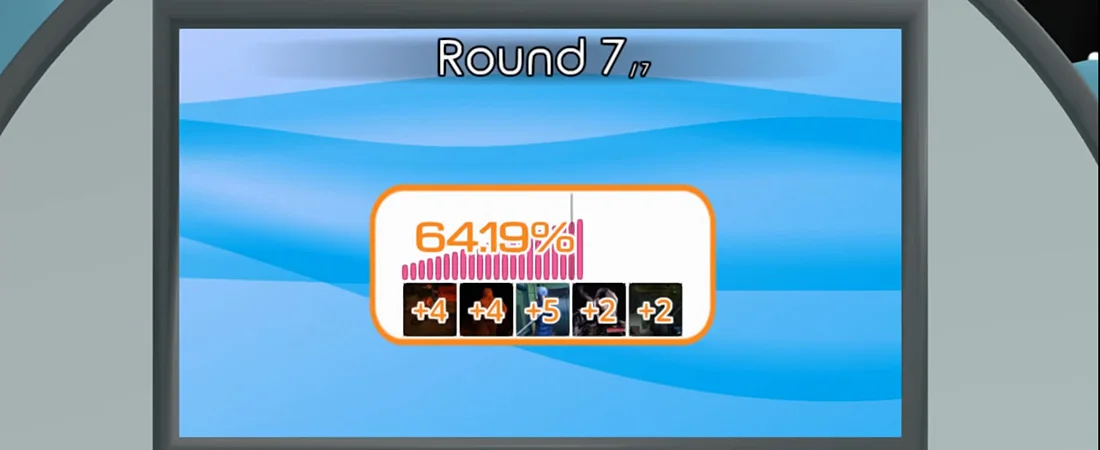
Scoring comes from the active judge panel, which reacts to each performance and assigns points. The exact scoring formula isn’t documented in-game, but consistent factors that affect the score include:
- Pitch matching — how close your delivery is to the reference clip’s tone.
- Timing — landing the performance within the round’s expected window, not rushing or dragging it out.
- Clarity — a clean mic signal matters as much as the performance itself; a garbled recording can tank a score regardless of how good the impression actually was.
Because the panel is computer-controlled rather than player-voted, scores stay consistent between solo and group sessions — there’s no “friends going easy on you” factor to account for.
Dub Mode
Dub Mode is a separate mode from the standard judged-round loop. Instead of performing a short prompt for a score, you’re recording a full voiceover pass — essentially dubbing over a longer piece of audio or a clip rather than a single quick line. It’s less about beating a scoring threshold in a few seconds and more about sustained delivery across a longer performance. Because sessions run longer, mic reliability matters even more here than in a quick studio round — a dropout mid-recording costs you the whole take, not just one line.
Game Modes at a Glance
| Mode | What It Does | How to Use It Better / What to Avoid |
|---|---|---|
| Single-Player | Standard judged rounds, one player, same scoring as group play | Good for learning pack content and mic setup before playing with others |
| Local Multiplayer | Up to 4 players sharing one studio, judged individually per round | Agree on a pack beforehand so everyone knows the content pool |
| Twitch Chat Mode | Reads chat commands to trigger prompts or let viewers participate | Pair with a chat-specific voice pack so viewers have their own clips, not just spectator commands |
| Dub Mode | Longer-form voiceover recording instead of short scored rounds | Test your mic on a short clip first — a failed long take wastes more time than a failed short round |
Common Mistakes
- Booting up the game expecting pre-made characters or a campaign — there isn’t one; the content library is empty until you load a pack.
- Ignoring microphone setup until mid-session. Recording issues are common, and they get noticeably worse on setups running surround-sound audio configurations — switching to a standard stereo input is usually the first fix.
- Trying to build a voice pack from scratch before understanding the round structure. Play a few rounds with an existing pack first.
- Assuming judge scoring is voted by other players — it isn’t; the panel is computer-controlled in every mode.
Beginner Tips
- Start with an existing voice pack rather than building your own on day one.
- Check your mic against a standard stereo setup before your first session if you’re on a surround-sound configuration.
- Play a few single-player rounds to learn how the judge panel scores before jumping into local multiplayer.
- If you’re streaming, load a Twitch-specific pack so chat has something to actually do beyond typing commands.
- Treat Dub Mode as a separate skill from short rounds — sustained delivery is a different challenge than a quick prompt.
What makes The Choicer Voicer work isn’t any single mode — it’s the fact that the studio, judge panel, host, and content pool are all separable pieces you can recombine. The scoring loop stays identical whether you’re alone, in a room with three friends, or running a Twitch chat session, and Dub Mode exists as a longer-form outlet for the same core skill: matching pitch, timing, and delivery against a reference. Once the content pool is filled in, the rest of the game is really just that judged loop, repeated in whatever shape you choose to run it in.