The Choicer Voicer ships with almost no built-in content. Everything you actually perform in the game — the clips you’re trying to match, the host lines between rounds, the judge reactions to your score — comes from Voice Packs, which are folders of audio files the game reads at startup. This page covers what a Voice Pack actually replaces, the different pack categories you’ll run into, where to find community-made ones, how installation works, and how to put together your own from scratch.
What a Voice Pack Actually Is
A Voice Pack is a folder containing audio files, sometimes paired with basic metadata, that the game loads into specific content slots. Each file in the pack fills a defined role: a clip to impersonate, a line the host reads out, a reaction the judges play after scoring you, or background audio for the menu. The game doesn’t generate any of this on its own — the base install is closer to an empty shell than a finished content set. If you install nothing beyond the default files, you’ll run out of clips almost immediately.
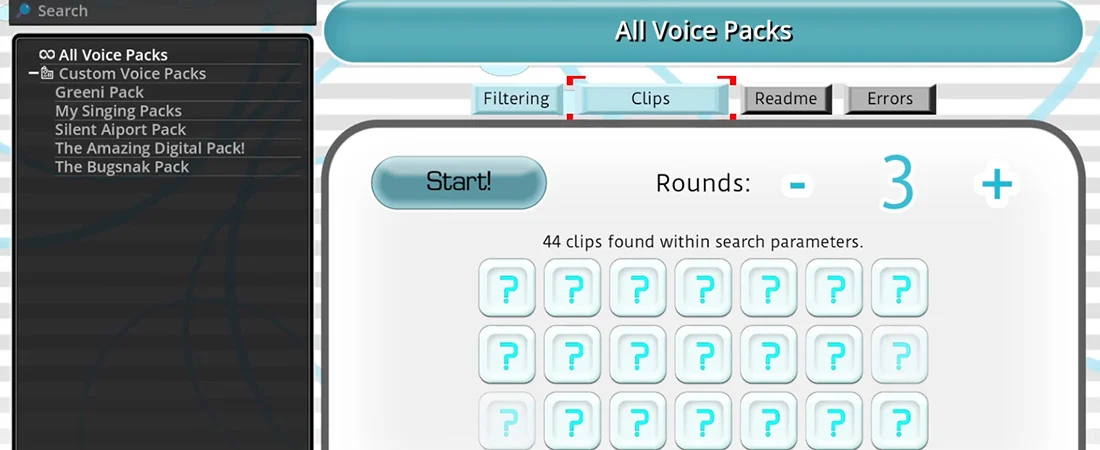
This is a deliberate design choice rather than a limitation. Instead of licensing a fixed library of voices, the game hands content control to players, which is why the modding and pack-sharing side of the community is as active as the core gameplay loop itself.
Pack Categories and What Each One Changes
Not every pack touches the same part of the game. Packs are split by category, and you can mix packs from different creators as long as they’re built for the right slot type.
| Pack Type |
What It Contains |
What It Changes In-Game |
| Host Pack |
Lines the announcer/host character reads between rounds and during transitions |
Replaces the voice and personality of the show’s host |
| Judge Pack |
Reaction clips tied to score ranges (bad, mediocre, good, perfect) |
Changes what the judge panel says or plays after each performance |
| Player Talk Pack |
Idle chatter, greetings, complaints, and reactions from the contestant character(s) |
Changes the personality and barks of the on-screen player character |
| Performance / Clip Pack |
The actual source audio you listen to and try to impersonate |
Determines what content shows up during a round — this is the “voice pack” in the narrowest sense |
| Menu Theme Pack |
Background music and visual theming for the main menu |
Changes the game’s menu music and, in some packs, background art |
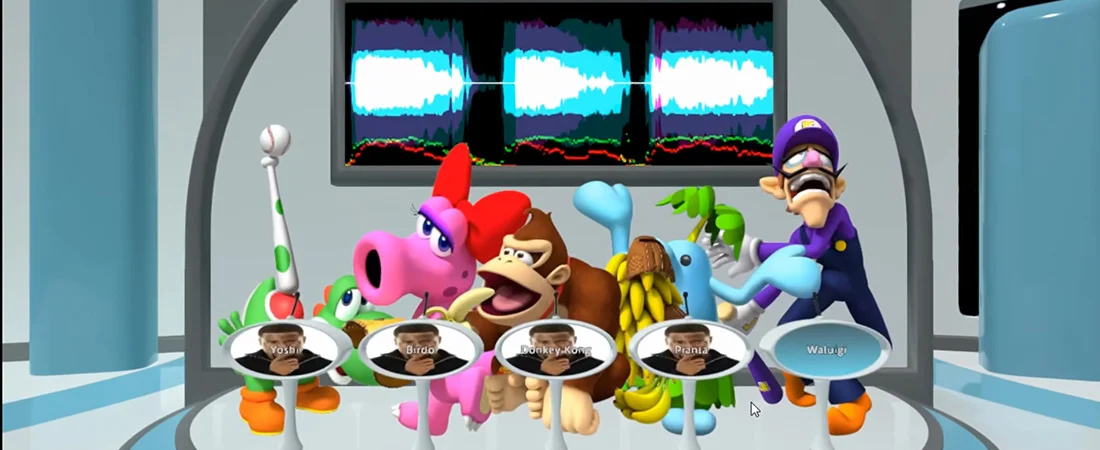
Most community releases bundle several of these together into a themed set — for example, a set built around a single show, franchise, or streamer that swaps the host, judges, and clip content all at once so the whole session feels consistent.
Base Game vs Community Content
The distinction that matters most when you’re starting out is base game content versus community packs. What ships with the game is a small demo set meant to show you the folder structure and slot naming, not to carry an actual playthrough. Community packs are where the real variety lives — meme compilations, franchise-themed sets, personal collections built for private groups, and packs made specifically to be used with a streamer’s chat.
- Base content: functional but limited, mainly useful as a naming/structure reference.
- Community content: wildly variable in size and quality, ranges from a handful of clips to hundreds bundled into a single download.
- Compilation packs: multiple smaller packs merged together, useful if you want volume without hunting individually.
Where the Community Shares Packs
Packs circulate mainly through two kinds of spaces: creator devlogs on pages like itch.io, and mod-hosting hubs built around the game specifically (the GameBanana-style listing sites, organized by category — compilation packs, themed packs, single-creator collections, and so on). Devlog-style pages are usually where you’ll find changelog notes and version history for a specific pack, while the hub-style sites are better for browsing everything available in one category at once.
- Check the pack’s stated compatibility before downloading — packs built for an older game version can be missing slot files the current build expects.
- Read install notes on the pack’s page itself; folder depth and file naming conventions occasionally differ between creators.
- Compilation packs save time but are harder to update piecemeal — swapping out one bad clip usually means digging through a much larger folder.
Installing a Voice Pack
Installation is manual and file-based — there’s no in-game pack manager or one-click subscribe. The general process is the same across pack types:
- Locate your game’s packs_voice folder (accessible through the Customize menu, or directly in the game’s install/user data directory).
- Extract the downloaded pack if it’s zipped, and copy the pack’s folder — not just the loose files — into that directory.
- Open the Customize menu in-game and confirm the pack shows up in the selection list.
- Test a few clips from the pack before playing a full session, to catch missing or silent files early.
Host, judge, menu, and player-talk packs typically install into their own separate subfolders rather than packs_voice, so check which content type a download is meant for before dropping it in — putting a judge pack into the voice-clip folder just means it won’t load.
Building Your Own Pack
Making a pack is closer to organizing a folder correctly than doing anything technically difficult. The game reads whatever audio files are present as long as they’re named and placed to match the slot system.
Basic Steps
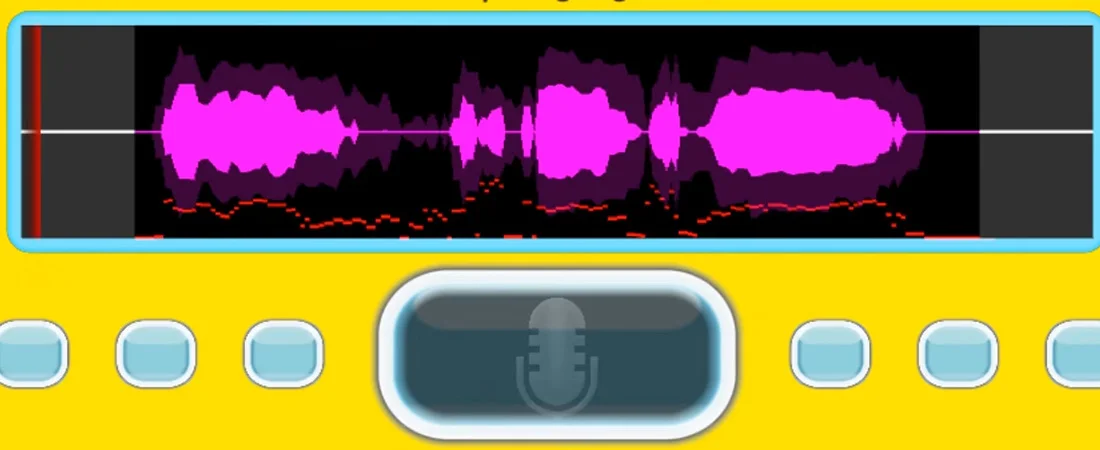
- Source or record your clips. Keep individual files short and trimmed — long, meandering clips are harder to judge and harder to impersonate cleanly.
- Name files to match their intended slot. Talk packs typically use descriptive slot names like talk_greet or talk_upset; judge packs use score-tier naming so the right reaction plays for the right result. Getting these names wrong is the single most common reason a pack fails to load correctly.
- Sort clips into the correct subfolder for their content type — performance clips, host lines, judge reactions, and player talk don’t share a folder.
- Test every slot through the Customize menu rather than assuming a correctly named file will just work — a typo in a filename is silent and easy to miss.
Once a basic pack works, expanding it is just a matter of adding more files to the same folders using the same naming pattern.
Common Pack Issues
- Pack doesn’t show up in Customize: almost always a folder-placement issue — the pack’s contents need to sit directly inside the expected directory, not nested inside an extra subfolder from the zip.
- Wrong folder for the pack type: a judge or host pack dropped into the clip folder won’t register, since the game checks each folder for its own expected file set.
- Missing slot files: if a pack is missing a required file for a given slot (a specific score-reaction clip, for example), that slot may fall back to silence or a default rather than erroring visibly.
- Packs breaking after a game update: slot naming or folder structure can change between versions, which is why checking a pack’s stated compatibility before installing saves troubleshooting time later.
Beginner Tips
- Start with one or two compilation packs rather than assembling dozens of small ones — it’s less folder management while you’re still learning the slot structure.
- Keep a backup of your packs_voice folder before mass-installing new content, so a bad pack is easy to roll back.
- If you’re building content for a specific group or stream, a matched set (host, judges, and clips built around one theme) plays more coherently than mixing unrelated packs.
Voice Packs are effectively the game’s content layer sitting on top of a fairly simple judging engine — the mechanics for scoring and playback stay constant, but everything you actually hear and react to is defined by whatever folders you’ve dropped into place. Understanding the slot system isn’t optional busywork; it’s the difference between a session with real variety and one that runs out of material in ten minutes.